Creating a Project
How to Create a Project
To create a Project:
- Click + Create.
- Enter the Name (typically the Name of the Study)
- Select the Source.
- Click Save.
Create a Target Vault
When setting up a target vault, you create a new record within the Target Vault object (mig_target_env__v). This connects your project to the target environment for the migration, typically a DEV, UAT, or PROD vault.
To create a Target Vault:
- Open the Project.
- Click to expand the Target Vaults section.
- Click + Create.
- Enter the Name.
- Select the environment Type.
- Enter the Vault URL. This is the EDC vault’s DNS.
- Click Save.
Upload Source Data
The Migrator processes clinical data only when it is in CSV format. It ignores all other formats without throwing an error, unlike YAML files, which trigger a system error.
To upload your source data:
- Click to expand the Source Data section.
- Click + Create.
- Enter the Name.
- Optional: Enter a Description.
- Optional: Enter a Note.
- Enter the Casebook Version number. This should match the Casebook Version for the Study you’re migrating data into in EDC.
- Click to expand the Attachments section.
- Drag and drop your files or click Upload to upload files one-by-one.
- Click Save.
Create Mapping Configurations
The Mapping Configuraton object contains your YAML mapping files. All mapping files must be in YAML format. Uploading any other format triggers a load error.
To create a Mapping Configuration:
- Open the Project.
- Click to expand the Mapping Configurations section.
- Click + Create.
- Enter the Name.
- Optional: Enter a Description.
- Optional: Enter a Note.
- Enter the Casebook Version number. This should match the Casebook Version for the Study you’re migrating data into in EDC.
- Click to expand the Attachments section.
- Drag and drop your files or click Upload to upload files one-by-one.
- Click Save.
Generate Mapping Files with the YAML Builder
The YAML Builder uses the EDC study design to automatically generate a baseline set of mapping files on a per-form basis, allowing you to jump-start their study migrations. After retrieving the study design from EDC, the Migrator recognizes the study structure (event group, event, form, item group, and item) for all forms in the study. It converts this data into an individual YAML file for each form. YAMLs can only reference one (1) form per YAML file.
After generation, the files may still require additional mapping, but the YAML builder covers roughly 80% of the expected mapping workload.
Read the YAML Builder to learn how to generate mapping files.
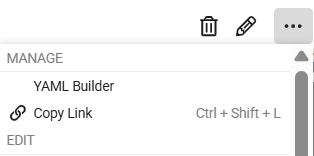
You need the following information to generate mapping files:
- Target Vault
- Study Name
- Date Source (origin of the extracts, for example, Rave™ or InForm™)
- Casebook Version
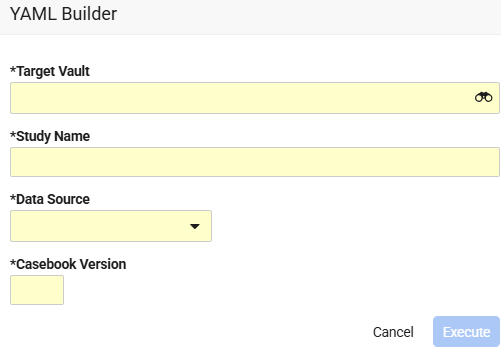
Upon execution, the Migrator adds YAML mapping files to the new Mapping Configuration object it creates. By default, Mapping Configuration objects have the following naming convention: [Study Name]_[yyyy_mm_dd_hh_mm_UTC]. For example: V2867_DEV1_2026_09_15_08_25_UTC
The Mapping Configuration object contains the following individual YAML files:
- events.yaml file
- transformers.yaml file
- global.yaml file
- header.yaml file
- logheader.yaml file
- labheader.yaml (if Local Labs is enabled)
- dno_events.yaml
- A Form YAML file for every form in the study schedule
The data source and the form’s definition name determine the name of the form YAML file. The first line within every YAML file indicates the source data CSV file to which the YAML maps. This is also typically the name of the YAML file (but does not have to be).
For studies originating from Rave, the name of the form YAML file matches the form’s Veeva EDC definition name. This name must also match the name of the form extract CSV file.
For studies originating from InForm, the name of the form YAML file matches the form’s Veeva definition name, preceded by “RD_”. For example, the YAML file for the demographics form may have the name “RD_DM.yaml.” This name should also match the name of the form extract CSV file. InForm typically prepends extracts with “RD_”, which is why the YAML Builder names the files accordingly.
How the YAML Builder Uses External IDs
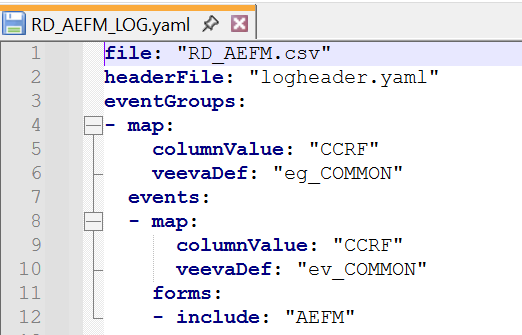
The YAML Builder uses the study design only for reference and does not look at the source data. To determine the column values and names for event groups, events, forms, items, unit values, and medical coding codes, the YAML Builder relies on the object’s external ID.
In the YAML example below, “AEFM” is the form definition name in Veeva EDC, and “AE” is its external ID. Item groups are a Veeva construct, and thus the system displays only the veevaDef. The system does not require a corresponding column value or column name.
forms:
  - map:
      columnValue: "AE"
      veevaDef: "AEFM"
    itemGroups:
    - map:
        veevaDef: "ig_SAFDRV"
      items:
      - map:
          columnName: "AEONGO"
          veevaDef: "AE_AEONGO"
The item definition name in Veeva EDC is “AE_AEONGO,” and “AEONGO” is the external ID of that object and the name of the column in the extract that contains the item value. Since that item is a codelist, the Migrator also validates that the item value exists in the Veeva codelist during the Validate & Stage step of the migration workflow.
Read the YAML Builder Reference for more information.