Configuring Study Settings
This topic describes how to configure study-level settings in EDC Tools for migration.
Prerequisites
Users with the standard CDMS Lead Data Manager, CDMS Librarian, CDMS Study Designer, CDMS User Administrator, and CDMS Super User can perform the actions described below by default. If your organization uses custom Study Roles, your role must grant the following permissions:
| Type | Permission Label | Controls |
|---|---|---|
| Standard Tab | EDC Tools Tab | Ability to access the EDC Tools tab. |
| Functional Permission | Edit Study Settings | Ability to edit the Study Settings available in EDC Tools. |
Managing the CDB Incremental Setting
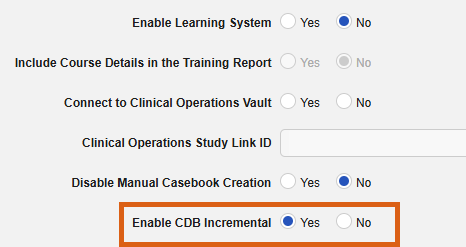
You can manage the CDB Incremental setting in EDC Tools for the Migration environment type. When enabled, data from Veeva EDC will automatically flow into Veeva CDB every fifteen (15) minutes.
The following criteria must be met for the Enable CDB Incremental setting to be visible in your vault:
- Workbench is enabled
- The Study is licensed for CDB
- Both the Direct Data API and CDB Incremental features are active for your vault
Edit the CDB Incremental Setting
To edit the CDB Incremental setting for migration:
- Navigate to Tools > EDC Tools.
- Click the Name of the Study. This opens the Study Environments page.
- Select Migration from the Environment Type drop-down. This opens the Study Settings page.
- Click Edit.
-
Make your changes.
- Click Save. Changes apply immediately.