Queueing & Scheduling Loads
This topic covers the Load Admin tab in the EDC Migrator.
Accessing & Navigating Load Admin
The Load Admin tab lets you monitor and manage migration loads that you have access to.
The tab consists of three (3) tables: In Progress, Load Queue, and Scheduled Loads.
The In Progress table lists loads that are currently running, while the Load Queue table displays loads waiting to execute, and the Scheduled Loads table shows loads set to start at a future time.
By default, each table displays 10 loads per page.
Click the load Name to go to the Load Details page. Click the Refresh icon to update all three tables.
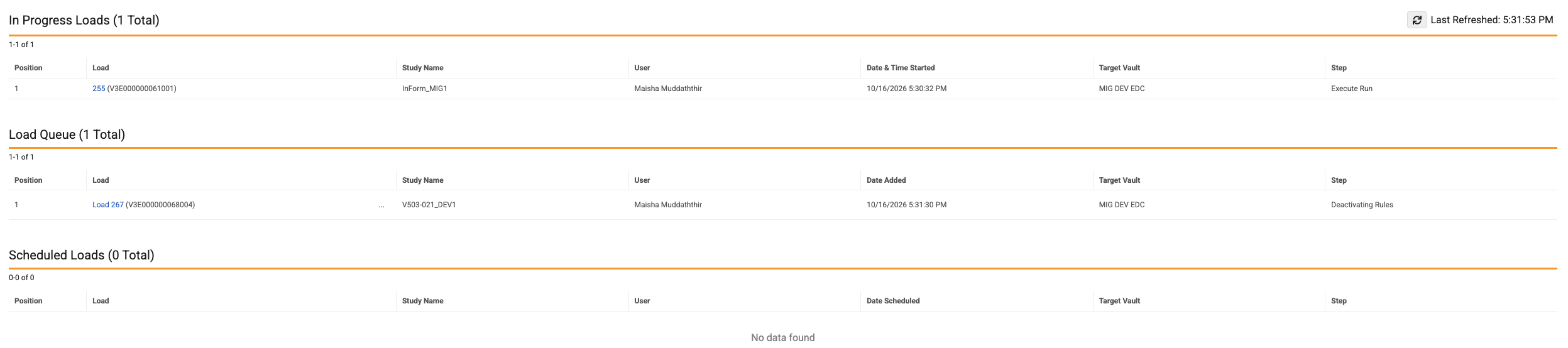
To adjust the execution order of queued loads, from the Load Queue table, click the Up arrow in the load’s row. You cannot move a non-priority load ahead of a priority load.
Columns
All three tables display the same columns, with the exception of the Date column. The Date column updates dynamically to show Date & Time Started for in-progress loads, Date Added for queued loads, and Date Scheduled for future loads.
| Column | Description |
|---|---|
| Position | The order assigned to the load based on the start date and time. |
| Load | This column contains the load Name formatted as Load Name (Load ID). Clicking the load Name takes you to the Load Details page. |
| Study Name | The name of the target EDC study. |
| User | The username of the person who executed the load. |
| Date | The date and time the load began running. This column updates dynamically to show Date & Time Started for in-progress loads, Date Added for queued loads, and Date Scheduled for future loads. |
| Target Vault | The name of the target EDC vault. |
| Step | The current workflow step of the study load. |